Google Enhanced Conversions for Leads [Step 1: Set up events Source for Google Enhanced Conversions for Leads (Option 1: Set up FTP File source for Google Enhanced Conversions for Leads)]
Description:
The File Transfer Protocol (FTP) is a standard network protocol used to transfer computer files between a client and server on a computer network. FTP is built on a client-server model architecture and uses separate control and data connections between the client and the server. With this integration, you will be able to sync offline data from your server to Google Enhanced Conversions for Leads through an FTP/SFTP connection.
Pre-Requisites:
- The FTP server address
- The FTP server port
- The FTP server username
- The FTP server password
Set-up Process:
Let’s go through the process required to set-up Files FTP for Google Enhanced Conversions for Leads
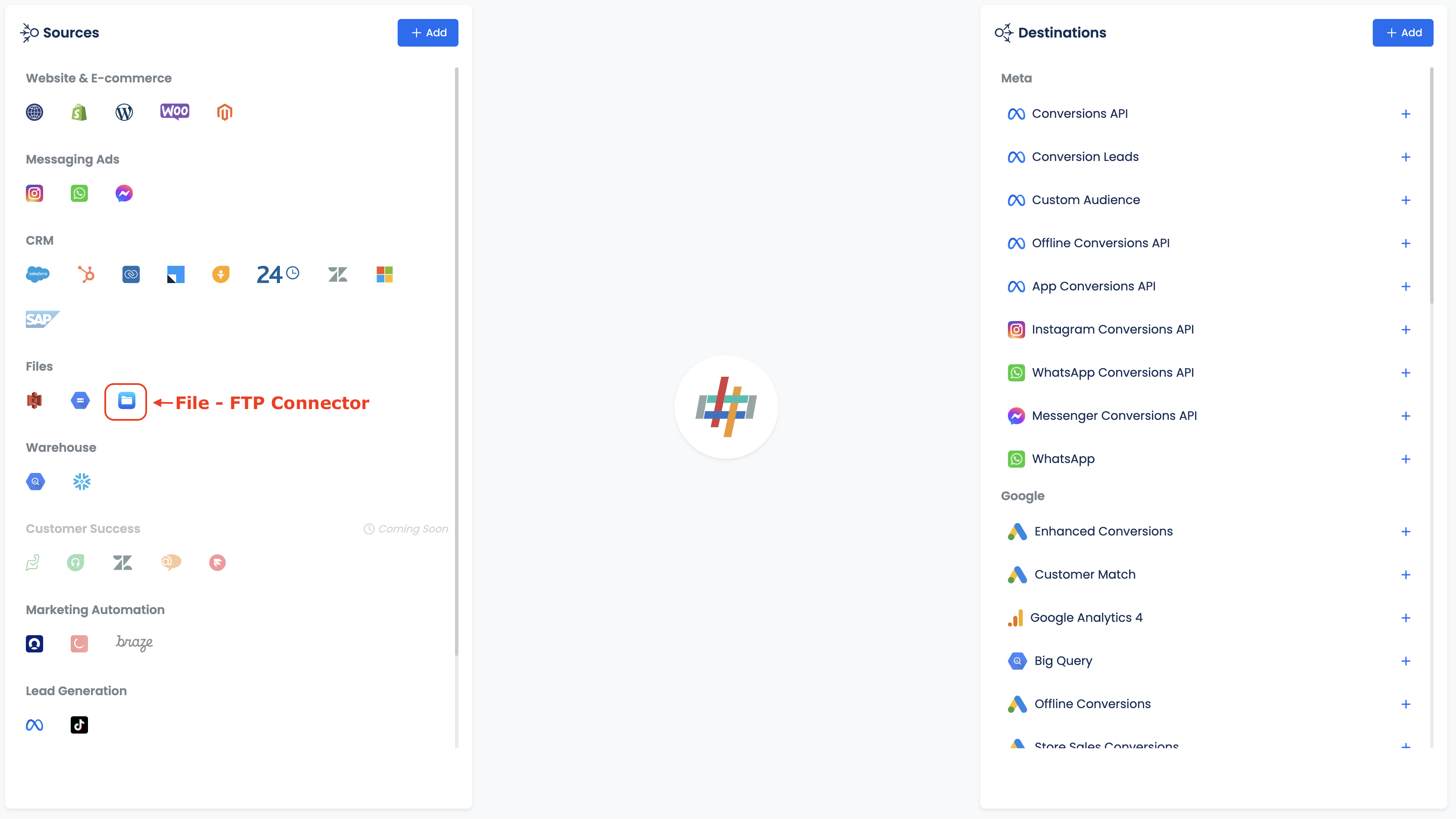
- Go to the Datahash dashboard and locate the Sources card. Look for File FTP connector under Files category and click on it.
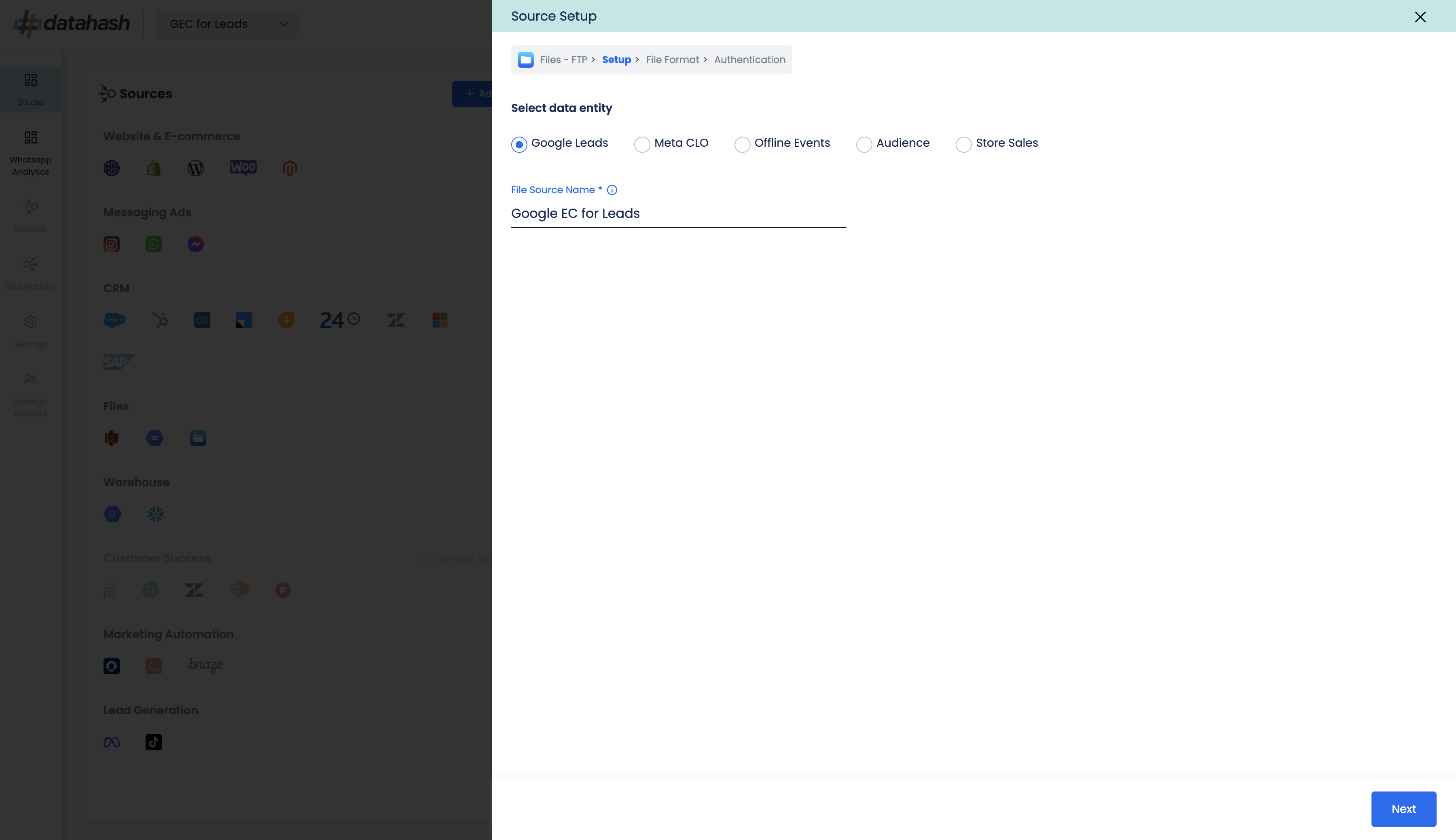
- The First step is to select the File data type. This helps in Datahash in understanding what type of integration the user wants to do. To implement Google Enhanced Conversion for Leads, select Google Leads option and give a name to your connection for identification.
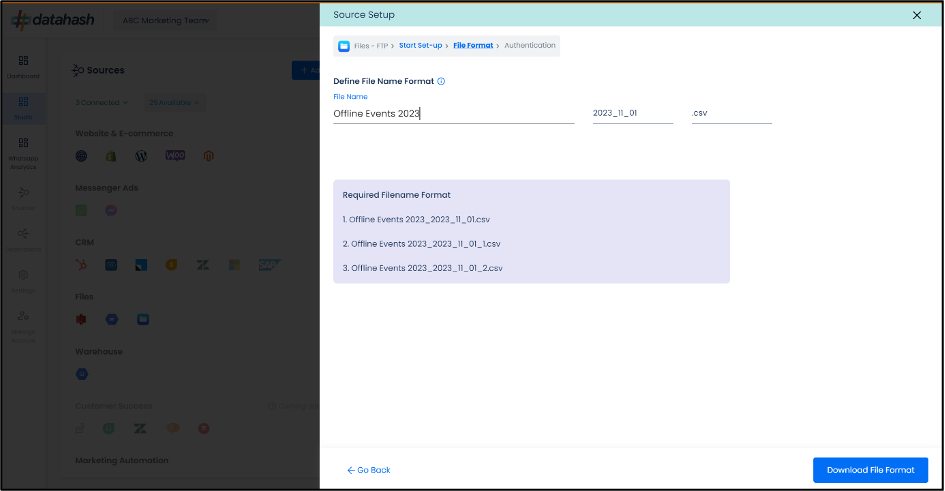
- In order to setup the connection successfully, kindly download the file which help you understand the overall structure in which you need to get the data setup. Once done take the downloaded file set-up in an FTP location and add credentials in the next step.
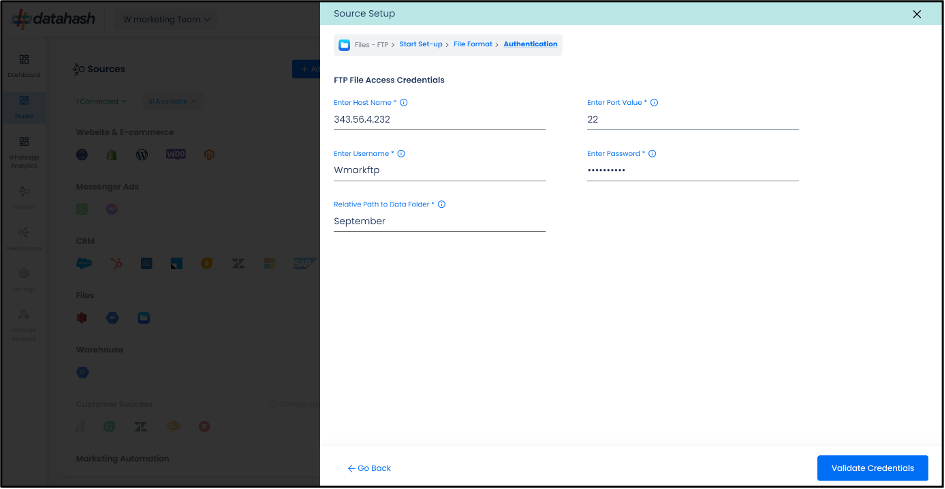
- This is the most important step where the user needs to provide the FTP credentials which will help Datahash to access the file for further processing. These credentials are:
- FTP Hostname: This is the hosting server name
- FTP Port: This is the server port, the default port for FTP is 22
- FTP Username/Password: Your FTP credentials, usually they’re the same as your cPanel login details
- Relative path to data folder: A path like prefix name where you have stored the files in the FTP folder like myfolder/thistable
Once all the credentials are provided, Datahash will validate the credentials and the connection will be successfully setup if all the credentials are valid.
File Format
The data points required/recommended for the integration are as below:
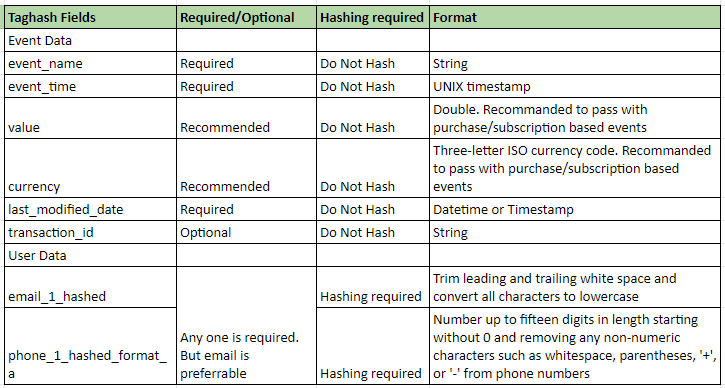
Below is the sample file format:

Related Articles
Google Enhanced Conversions for Leads [Step 1: Set up events Source for Google Enhanced Conversions for Leads]
Google Enahnced Conversions for Leads can be set-up using any one of the below available data sources that can provide conversions data for leads . Click on the desired data source to start the set-up. Option 1: Set up FTP File source for Google ...Setting up source as File FTP for Snap Leads Conversions API
Prerequisites: The FTP server address The FTP server port The FTP server username The FTP server password Set-up process: Log in to your Datahash account on https://studio.datahash.com/login Navigate to Files category under Sources list in the left ...Setting Up Source as CRM for Snap Leads Conversions API
Set up data source for Snap Leads Conversions API : First step to implement Snap Leads Conversions API is to integrate a data source which your organization uses to manage and store leads information. Datahash provides integrations with various type ...Setting up source as Google Big Query for Snap Leads Conversions API
Prerequisites: Google Cloud Project with Big Query API Enabled. Google Service Account with Big Query User and Big Query Data Editor roles in your GCP project. Service Account JSON key to authenticate into your service account. Set-up process: Log in ...Setting Up Source as File Stores for Snap Leads Conversions API
Set up data source for Snap Leads Conversions API: Option 8: Set up AWS S3 data source for Snap Leads Conversions API Option 9: Set up Files FTP data source for Snap Leads Conversions API Option 10: Set up Files GCP data source for Snap Leads ...